
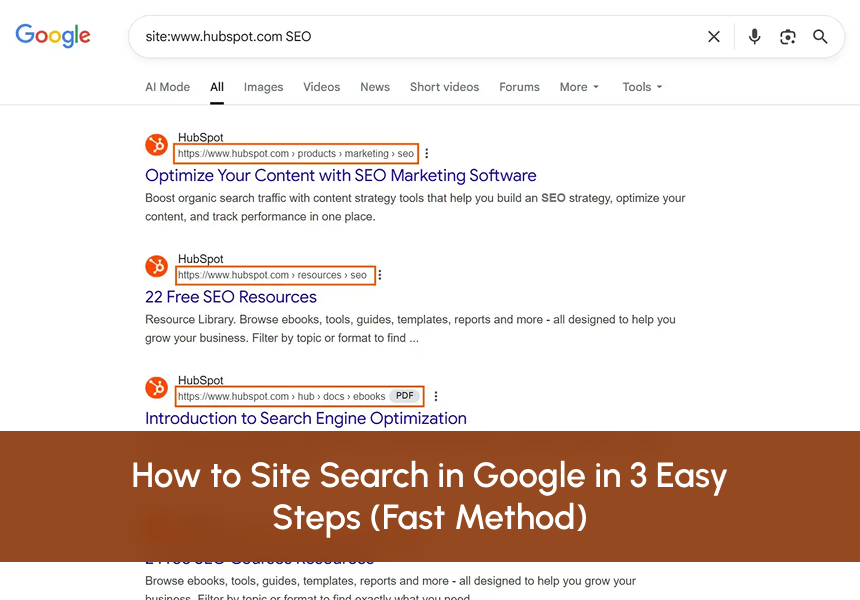









Google has numerous search features, but how to site search in google is one of the most underrated among them. Although it seems quite basic at first, it can still provide insight as to how a website is organized, what pages are acknowledged by Google, and where the content is probably missing or buried. Every day, a lot of marketers, writers, and entrepreneurs use Google without knowing the extent of their control over the search results.
Site search can be very handy when time is of the essence. Rather than going through menus or scrolling down for so long, you can filter Google’s results to just one site and search it with accuracy. It is then very simple to check what pages have been indexed, find the content you need, and know how the info is distributed throughout the site.
This blog provides a straightforward three-step process for performing site searches in Google, which is very clear. Moreover, it discusses the practical ways to use it, the common errors to avoid, and how this easy technique can assist in better content research, internal linking, and site analysis, besides just basic searching.
What site search in Google actually means
A Google site search lets you search inside a website using Google instead of the site’s own search feature. You are telling Google one thing: “Only show me results from this specific website.”
This works using a small operator called site:. For example, when you type: site:cognitiveitsolution.com
Google limits results to that website only. From there, you can narrow things down further. Services, blog posts, old pages, PDFs, anything that Google has indexed from that domain.
This is why people use Google to search Google inside website pages instead of relying on internal search tools that often miss content or show poor results.
Why site search matters more than people think
This is not just an “SEO trick.” It is a practical skill. Here is why it matters.
-First, it saves time. Instead of clicking through menus or guessing URLs, you get answers fast.
-Second, it is a very big help for research. Normally, writers, marketers, students, and job seekers turn to Google to search a particular website just to verify facts, find policies, or get particular content.
-Third, it assists in recognizing problems. You can discover the pages that Google has indexed, the ones that are not indexed, and the old ones that are still there in the search results.
-Fourth, it reveals the subject matter areas where no content is available, which is the case when you search for a topic, and nothing comes up; that is a relevant piece of information in itself.
People who understand Google site search tend to work faster and make better decisions because they are not guessing.
Step 1: Head to Google.com and Use the site operator the right way
The foundation is simple. First, head to Google.com and then type this into Google: site:example.com
But make sure to replace example.com with the website you want to search. There should be no space between site: and the domain.
Now, let us make this useful.
Say you want to check a website. You could type:
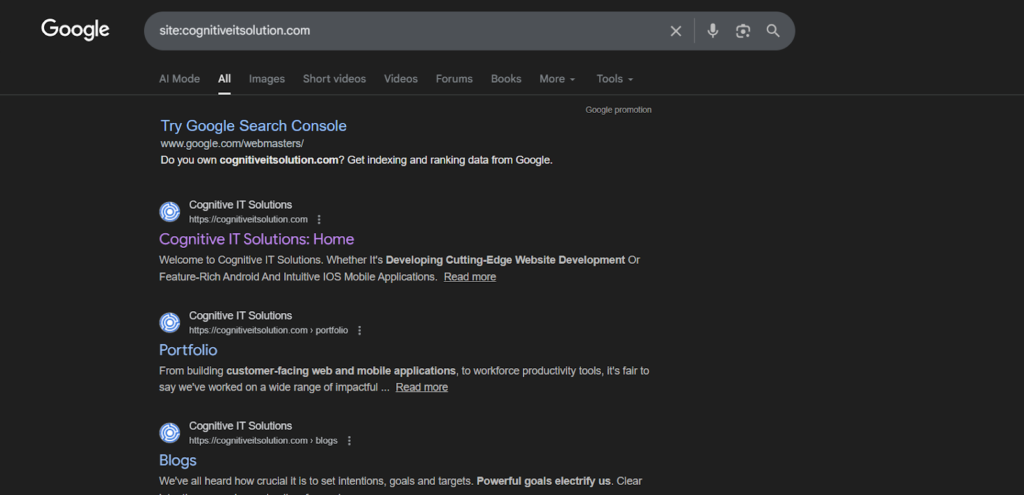
You will see all the indexed pages from the website you are checking.
Step 2: Narrow results using simple keyword logic
Once you know how to search a website with Google, the next step is refining results.
You do not need advanced operators. You just need intent.
Searching for services
If you are checking whether a service page exists, try:
site:cognitiveitsolution.com services
Or more specifically:
site:cognitiveitsolution.com web development

If nothing shows up, that tells you something important. Either the page does not exist, or Google has not indexed it yet.
Searching for blog posts
Looking for educational content? site:cognitiveitsolution.com blog SEO
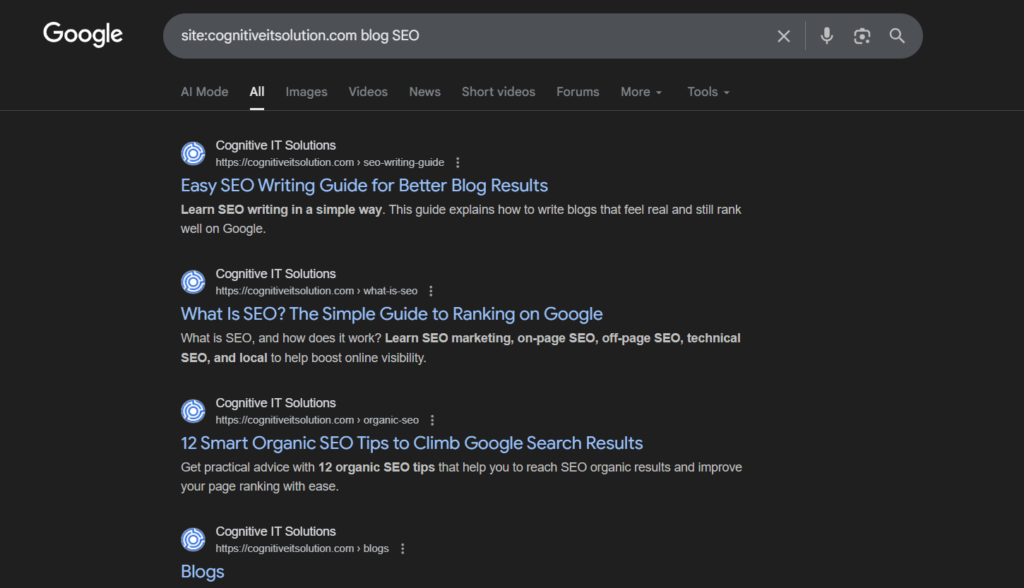
This helps you quickly scan how much content exists on a topic.
Searching for files or resources
Sometimes you want PDFs, case studies, or downloads.
site:example.com pdf
You would be surprised how much hidden content lives this way.
This approach is useful when you need to search within a website with Google and do not want to rely on filters or tags that may not work correctly.
Step 3: Use site search for real-world tasks
This is where things get practical.
Checking if a page is indexed
If you recently published a page and want to see if Google knows about it, paste part of the URL or title after the site operator.
site:cognitiveitsolution.com mobile app development
If it appears, Google has indexed it.
If it does not, you know where to focus next.
Finding outdated or duplicate content
Search broad terms: site:example.com “2021”. This sometimes reveals old posts that still reference outdated years or information.
Identifying content gaps
If you expect a topic to exist but find nothing, that is insight.
For example: site:example.com cybersecurity
No results? That might mean an opportunity. This is exactly how content teams and SEO specialists use searching site on Google to plan new content.
When Google site search beats internal search tools
Many websites have built-in search bars. Some are good. Many are not. Internal search tools often:
- Miss older content
- Ignore PDFs or media
- Return unrelated results
- Break after redesigns
Google does not have those problems. That is why professionals default to Google site search when accuracy matters.
-It works even when navigation fails.
-It works even when search bars are removed.
-It works even when a site has hundreds of pages.
Common mistakes people make
Even though the idea is simple, mistakes happen. Here are a few to avoid.
Adding spaces incorrectly
This is wrong:
site: cognitiveitsolution.com
This is right:
site:cognitiveitsolution.com
Searching too broadly
Typing only the domain without keywords gives you thousands of results. Always add context.
Expecting Google to show unpublished pages
If a page is blocked, unpublished, or nonindexed, Google will not show it. That is not a bug.
How professionals use this for SEO and audits
SEO teams use site search constantly. They use it to:
- Audit indexed pages
- Find thin or duplicate content
- Verify migrations
- Check broken sections
- Compare visible pages vs actual pages
This is often paired with analytics and tools, but the manual site search is where understanding starts.
If you are working on visibility or growth and need support beyond manual checks, exploring professional Digital Marketing Services can help connect strategy with execution.
A realistic example without the sales pitch
Imagine you manage a growing website. You believe you have written about cloud solutions.
But you are not sure how visible that content is.
You run:
site:examplewebsite.com cloud
Only one result shows up.
Now you know two things:
- Google sees limited content on this topic
- Visitors searching the site likely struggle too
That insight alone helps shape content planning without opening any SEO tool. This is the quiet power of learning how to search a site in Google properly.
To Summarize
Google site search is one of those skills people overlook because it looks too simple. But simple does not mean basic.
Once you understand how to search website with Google, you stop wasting time. You stop guessing. You stop relying on broken menus and unreliable internal search bars.
Three steps. One operator. Real control over information. And once you get used to it, you will wonder how you ever searched without it.
Frequently Asked Questions (FAQs)
How to quickly search on Google?
The easiest way to get the quickest results is by keeping your search simple and clear. Begin with the major concept, and next add some details only if necessary. In case you are searching for something at a certain place, state the location in the same search. Google is quite proficient in comprehending natural language; it is not necessary to form complete sentences. Typically, short and precise phrases are more effective and also consume less time.
What are 10 Google tricks?
Google has a few fun and useful hidden features that many people do not notice. You can type phrases like “do a barrel roll” to spin the page, or “askew” to tilt it. Searching for “flip a coin” or “roll dice” gives instant tools. You can also play games like Pac Man or Snake directly in search. These tricks do not improve productivity, but they show how flexible Google search really is.
How do I use Google search step by step?
You need to open your browser and head to Google. Enter the query you want to find in the search box. Press the “enter” key, or alternatively, you can tap on the search icon. At this point, go through the list of results and pick the one that most accurately meets your needs. In case you do not find the results helpful, try to redo your query a bit and give it a shot again. During the process of the search, sometimes just a word or two can make a great difference in the results you get by using the different search engines.
How to quickly search a website?
If you are currently viewing a web page, you can use the browser’s FIND function to quickly locate something on that page. On a Windows operating system, press CTRL + F, and on a Mac, press COMMAND + F. Once you enter the term you are searching for in either case, your browser will highlight it immediately. Using Google Site Search will yield faster, more comprehensive results across a website than checking each individual page manually.