



Long web pages can feel kinda brutal. You open an article expecting a quick answer, and then you get 3,000 words plus endless scrolling. Sound familiar? Yeah, it’s exactly why anchor links even exist.
They let visitors bypass the extra fluff and go straight to the specific info they need.
You’ve probably used them a hundred times, without really paying attention. Ever tapped a table of contents near the top of a blog and basically teleported to a particular section? That’s anchor links doing their thing, no fancy performance.
The good news is, they’re honestly pretty easy to set up.
You don’t need to be a developer, and you definitely don’t need super advanced coding skills. Once you get the idea, you’ll start using them everywhere, on your site or in your docs.
In this guide, you’ll see what anchor links are, why they matter for user experience and SEO, and how to create them, step by step.
What Are Anchor Links?
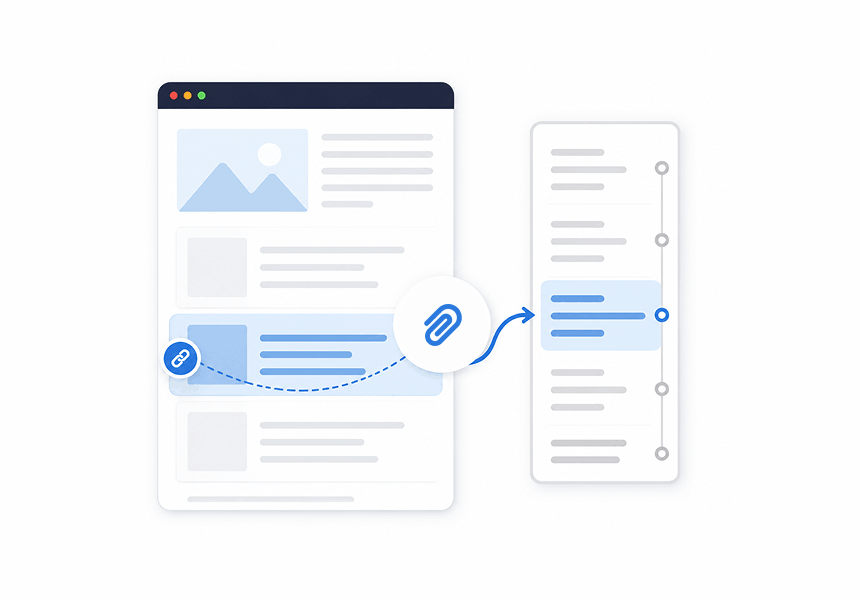
Anchor links are clickable connections that take users to a particular section on the same webpage instead of sending them away to a different page.
They’re often called:
- Jump Links
- Page Anchors
- Section Links
- In-Page Navigation Links
For example, if a page contains:
- Introduction
- Pricing
- Features
- FAQs
- Contact Information
With an anchor link, people can jump right to a given section using just one click. Not more scrolling forever , not wandering around—just… there, where they wanted to end up. Sounds simple, and it is, but it’s also weirdly powerful.
Why Anchor Links Matter
Most folks don’t read websites word for word. They usually scan instead. And in a bunch of usability studies, visitors tend to skim the content first, to figure out pretty quickly whether it’s worth reading. That’s basically where anchor links come in.
Benefits include:
- Better User Experience
- Faster Navigation
- Improved Content Accessibility
- Easier Reading On Mobile Devices
- Better Organization For Long Pages
When visitors can sort of get answers fast, they tend to hang around on your site. And well thats good for you too, everybody benefits.
Anchor Links vs Regular Links
Now a lot of beginners, they mix these up, it happens. The deal is this: a regular hyperlink sends people somewhere else, like to a different page.
Example:
- Homepage → Contact Page
- Blog Post → Product Page
- Website → External Website
An anchor link though, it keeps you on the same page.
Example:
- Table Of Contents → FAQ Section
- Navigation Menu → Pricing Section
- “Learn More” Button → Features Section
So the destination shifts, but the page itself doesn’t, it just jumps.
How Anchor Links Work
Before building them, it helps to understand the basics. An anchor link requires two elements:
- A Link
- A Target Section
The link tells the browser where to go. The target section tells the browser where to stop. These two parts are connected using an ID. Think of it like giving a section a name. Then telling the link to find that name.
Understanding the Anchor Tag Code
The foundation of anchor links is HTML . More exactly, it’s the anchor tag code, kind of the whole thing. A basic link , looks like this:
<a href=”#”>Link Text</a>
The href attribute tells the browser where the link should go.
For anchor links, you add a hashtag followed by the target ID. Example:
<a href=”#pricing”>View Pricing</a>
This tells the browser: “Jump to the section called pricing.” Now let’s create the target section.
Step 1: Choose the Section You Want to Link To
First, figure out where you want people to land, kinda like decide the place they end up. If your page has a pricing part, then the heading could be more or less like:
<h2>Pricing</h2>
We need to give it an ID. Like this:
<h2 id=”pricing”>Pricing</h2>
Now the browser knows exactly where that section is located.
Step 2: Create the Link
Next, create the clickable link.
<a href=”#pricing”>View Pricing</a>
When someone clicks the link, they’ll instantly jump to page – the pricing section. That’s it. Your first anchor link is complete.
Full Example
Here’s everything together:
<a href=”#pricing”>View Pricing</a>
<h2 id=”pricing”>Pricing</h2>
The link and the destination are now connected. This is the most common method for creating an html link to section of page.
How to Link to a Specific Part of a Page
One of the most common questions people ask is: How to link to a specific part of a page? The answer is simple.
Follow these steps:
- Create An ID For The Destination Section
- Add The ID To The Heading Or Element
- Create A Link Using The Same ID
- Add A Hashtag Before The ID Name
Example:
<a href=”#faq”>Go To FAQ</a>
<h2 id=”faq”>Frequently Asked Questions</h2>
This creates an html link specific part of page without needing any complicated coding.
Best Places to Use Anchor Links
Not every page needs them. But certain pages linking to a page benefit significantly.
Long Blog Posts
This is probably the most common use. A table of contents helps readers jump directly to:
- Key Sections
- Tutorials
- Examples
- FAQs
Large guides become much easier to navigate.
Landing Pages
Many landing pages contain sections like:
- Features
- Benefits
- Testimonials
- Pricing
- Contact Forms
Anchor links help users reach those sections faster.
FAQ Pages
Usually show up with dozens of questions. With anchor links, visitors can jump straight to the actual answer they’re looking for. It helps the whole experience a lot, honestly, because the flow feels more natural .
Glossaries
Glossaries are similar but in a different way. Those pages might list hundreds of terms, and if you add alphabetical anchor links navigation gets a lot smoother. People don’t have to hunt word by word, and that saves time.
Do Anchor Links Help SEO?
This is where things get interesting. Anchor links are primarily a user experience feature. But they can indirectly help SEO. Here’s why. Google values pages that provide strong user experiences.
When visitors can easily find information:
- Bounce Rates May Improve
- Engagement Often Increases
- Content Becomes More Accessible
Some people who work with search engines think that anchor links can help search engines understand how a page is set up. This is why you will often see anchor links used in articles and posts. Anchor links are really helpful in long-form content, like this.
Especially guides. Especially tutorials. And especially pages targeting competitive keywords.
Businesses investing in SEO services Toronto often use anchor links on service pages because they improve navigation and help organize information more effectively.
Common Anchor Link Mistakes
Anchor links are simple, yet things still go wrong sometimes. You have to avoid the usual problems.
Using Duplicate IDs
Every ID must be unique.
Bad:
<h2 id=”pricing”>
<h3 id=”pricing”>
Good:
<h2 id=”pricing”>
<h3 id=”pricing-details”>
Using Spaces in IDs
Avoid spaces.
Bad: id=”pricing plans”
Good: id=”pricing-plans”
Or: id=”pricing_plans”
Forgetting the Hashtag
Without the hashtag, the browser won’t recognize the anchor destination.
Correct: href=”#pricing”
Incorrect: href=”pricing”
Small detail. Big difference.
Anchor Links and Mobile User Experience
Mobile traffic is really big in 2026. This means navigation is very important now. Think about looking at a long guide on your phone. It has 4,000 words. That is not fun to do. Mobile traffic is what most people use. So we need to make navigation better, for traffic.
Anchor links solve that problem. They help mobile users:
- Find Answers Faster
- Skip Unnecessary Sections
- Navigate More Easily
- Stay Engaged Longer
This is one reason many major websites now include table-of-content navigation on mobile devices.
Real Examples of Anchor Links
You’ve probably used them on:
- Wikipedia Articles
- Documentation Websites
- SaaS Product Pages
- Blog Tutorials
- Online Courses
When you click a table of contents and you instantly move to another section you are using an anchor link. Anchor links are really things that can make a big difference, on a website. Anchor links help people get to the information they want quickly.
Why Developers and Marketers Both Love Them
Anchor links are kind of in that sweet spot. Developers like them, because they’re fairly easy to drop in, not too much hassle. Marketers prefer them because they can uplift the user experience , in a very noticeable way. SEO specialists also lean on them, since they help with organizing content, and giving it better structure. In the end, everybody wins, kind of.
And honestly, that’s rare.
To Sum Up
Anchor links may seem like a small website feature. But they solve a big problem. People do not want to waste their time searching for information. They want to get answers
Using anchor links is a help because it lets people go straight to the parts of a page that they really need to see. This makes the page a lot easier to look at and use.
If you are making a blog post or a page that answers questions or if you are making a page about a service or a product you can make the page better by adding anchor links. Anchor links can make a difference in how people like your page.
If you are building websites then companies, like Cognitive IT Solutions can help. They help businesses create web solutions. These solutions are more user friendly. They keep visitors engaged.
Once you learn how anchor links work you will probably start adding them to every page you publish. This is because sometimes the smallest improvements can make a big impact.
Frequently Asked Questions (FAQs)
How do I anchor to a specific part of a page?
To reach a certain part of a page you usually need to do a couple of things, more or less. First you add an ID to the section on the page that you want the anchor link to land on. After that you make the anchor link , using that same ID but with a hashtag in front of it.
<a href=”#contact”>Go to Contact</a>
<h2 id=”contact”>Contact Us</h2>
How do I hyperlink to a specific part of a webpage?
Create a hyperlink that points to an element’s ID on the page. Example:
<a href=”#pricing”>View Pricing</a>
The link will take users directly to the section with id=”pricing”.
Can a hyperlink point to a specific section of the same page?
Yes. This is called an anchor link or jump link. It allows users to jump directly to a specific section without loading a new page.
How do I link within a section of a page?
Assign a unique ID to the target section and link to it using the ID.
Example:
<a href=”#faq”>Jump to FAQ</a>
<div id=”faq”>
FAQ Content Here
</div>